
LEARN VISUALLY · Digital skills
Markdown explained: the text file behind a formatted documentWrite the source. Check the preview. Share the right copy.
Follow a plain text note into a rendered preview, repair a heading, preserve literal examples and check links, tables and portability with executed local examples.
Why does one person see # Packing list while another sees a heading? Follow an original note from source text to preview, then repair small failures and check what survives between apps.
Jump to a section
The big picture
Open full-size diagram ↗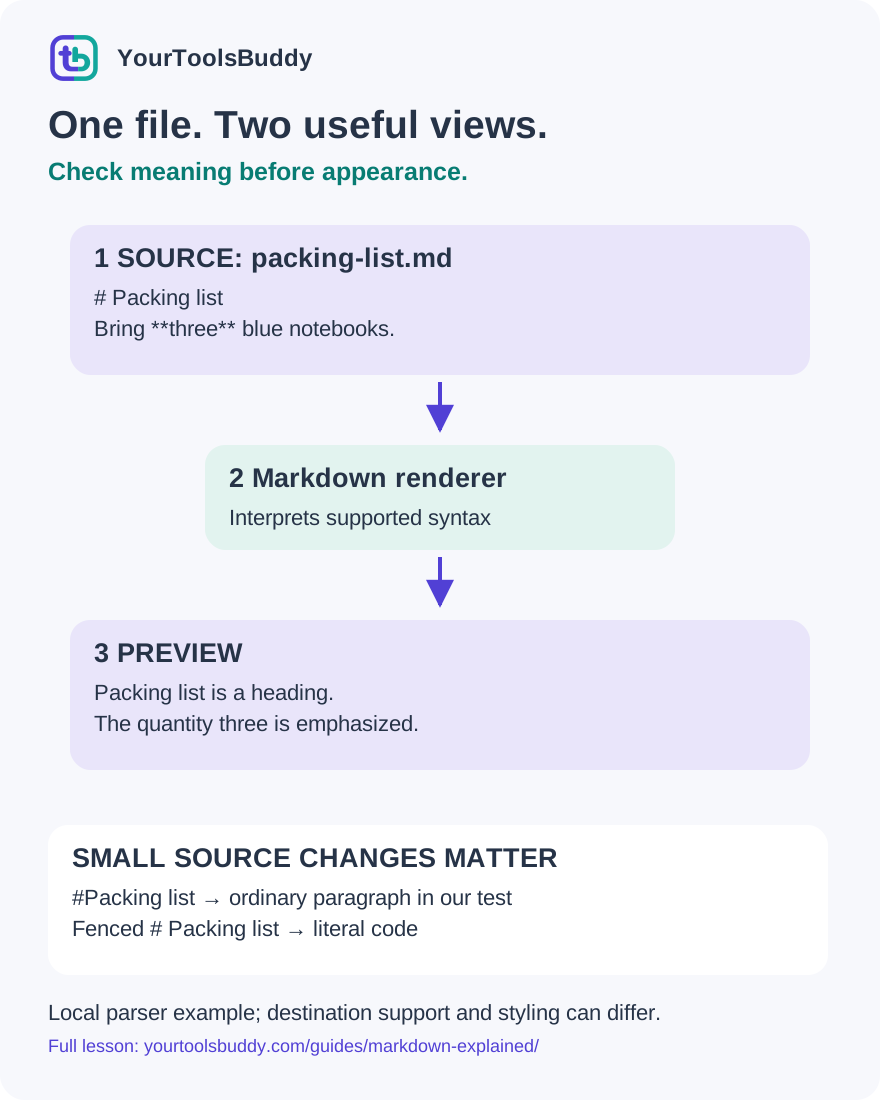
The diagram’s relationships are explained in the readable cards below. Open the full-size SVG to zoom.
Download branded diagram (SVG)Read the diagram
Original synthetic example. The executed local parser demonstrates structure, not identical styling or compatibility across every application.
Read the source
Inspect the actual words, punctuation and link destinations.
Identify the renderer
Syntax support and options can change the result.
Check the preview
Confirm heading, list, literal code and useful hierarchy.
Verify the handover
Inspect the recipient copy and include required assets.
Why does this document contain hash signs?
A classmate sends a packing list called trip.md. When you open it in a text editor, the first line is # Packing list. Another person opens the same file and sees a large heading without the hash sign. Neither person necessarily has a broken copy. They are looking at two views of the same document: its source text and a rendered presentation.
This distinction is useful when sharing notes, instructions, project readme files or a small handover document. You can inspect the words directly, then use a preview to check the structure a reader will see. A document that is readable in both views is easier to move between tools and easier to repair when formatting looks unexpected.
We will build a fictional packing list, deliberately break a heading, protect a literal example and compare two parser settings. Every input is synthetic. The recorded experiment uses a local Markdown parser; it is not a test of a Google account, a cloud editor or every Markdown application. The goal is to understand the document you are carrying between those applications.
Follow the source, renderer and result
Think of three separate objects on your desk. The first is the text file containing your words and punctuation. The second is the program interpreting that text. The third is the resulting preview or exported document. If an output looks wrong, identify which of those three needs attention before changing the original.
For our packing list, a source line beginning with a hash and a space becomes a heading in the tested renderer. The renderer creates HTML containing a heading element, and the browser styles that element. The text file itself has not acquired a particular font size. Another application can present the same heading with different spacing or typography.
Use a side-by-side editor and preview if one is already available in your workflow. Make a small change to the source and observe the corresponding change in the preview. Save the source separately from an exported PDF or HTML file, because the exported result and the editable source serve different purposes. Keep the original until you have checked the destination copy.
Build a small file you can inspect
Start with a plain text file named packing-list.md. Type # Packing list on the first line, leave an empty line, then write Bring **three** blue notebooks. Leave another empty line and add two separate lines: - Check the title and - Save the file. Use ordinary straight punctuation when reproducing these examples.
Before opening a preview, read the source aloud as an instruction. There is a title, a sentence with one emphasized quantity, and two actions. That is the intended meaning. In the recorded local result, the heading became an h1 element, three became strong text, and the two actions became list items. The test checked those structures rather than demanding a particular font.
Now imagine a teammate changing three to four in the source. The useful review question is whether the quantity changed deliberately. A new font or a wider preview panel would not answer that question. Keep content decisions separate from presentation decisions, especially when reviewing instructions where a small word or number changes what someone must do.
A failure that looks like a broken preview
Delete the space after the opening hash so that the first line reads #Packing list. In our executed case, the parser produced an ordinary paragraph containing that text rather than a heading. Restoring the space restored the heading. This is a small, reproducible failure with a direct repair.
When a heading fails, first inspect the actual characters at the start of the line. Compare the working and failing source instead of repeatedly changing themes or reopening the preview. Copying a line through a messaging application can also introduce characters that look similar to the ones you intended, so a tiny fresh example is often easier to inspect than a long document.
The habit generalizes: reduce a confusing result to the smallest source that still shows the problem, test one change, and keep the working version. Do not rewrite an entire handover note because one heading failed. In our example, the one-character spacing change explained the observed difference; no account setting or internet connection was involved.
Show syntax without activating it
Sometimes the reader needs to see the hash sign itself. A lesson about headings, for example, must show # Packing list as an example rather than turning every example into another document heading. Put the example inside a fenced code block: an opening line of three backticks, the example line, and a closing line of three backticks.
Our local test placed # Packing list between those fences. The result contained a code block with the literal hash sign and no heading element. Removing the fences changed the interpretation back to a heading. We inspected the resulting HTML and prepared a browser preview so that the difference could be checked independently of a test assertion.
For a real instruction sheet, distinguish an instruction to the reader from text the reader should copy. A fenced sample communicates that boundary. Explain what the sample is meant to do, and do not imply that a code block makes a command safe to run. In this lesson the fenced content is harmless text, and nothing inside it is executed.
Make the reading structure deliberate
Add a short introduction before the two actions and a closing sentence afterward. Separate those paragraphs with empty lines. In our tested example, two text blocks separated by an empty line became two paragraph elements. A single ordinary newline inside a paragraph remained part of that paragraph under the tested default settings.
This matters when source text wraps at the edge of an editor. A visual wrap on your screen is not necessarily a stored paragraph boundary, and a stored single newline is not necessarily a new displayed paragraph. Inspect the preview for the structure you intend instead of lining up words with repeated spaces.
Suppose the list explains what to pack and the final paragraph explains where to meet. Give those ideas separate paragraphs because they have different jobs. Avoid using a run of decorative symbols to simulate a section break when a clear heading would explain the transition. Structure should help a reader find the next action, not merely create a more elaborate page.
Read the destination as well as the label
A Markdown link has visible label text and a destination. Our synthetic example uses [Full lesson](https://yourtoolsbuddy.com/guides/markdown-explained/). The local output contains a link whose label is Full lesson and whose destination is the exact lesson address. The friendly label does not itself prove where a link goes.
For your packing list, choose a label that describes the destination, such as Meeting instructions, and check the actual address before sharing. If the address changes, update the source and preview the result again. A screenshot showing only the label cannot establish that the underlying destination is correct.
Keep that same discipline when reading someone else's document. Inspect a destination through the application's supported link preview or browser status information before opening an unfamiliar address. The parser exercise demonstrates the separation of label and destination; it does not verify the safety of arbitrary websites. We used only the expected lesson address and did not visit suspicious links.
A table can depend on the renderer
A document may use features supported by one Markdown flavor and absent from another. GitHub Flavored Markdown identifies tables and task list items as extensions. That is a reason to check the destination application's support rather than assuming that every preview offers identical features. Typography can also vary even when the basic structure agrees.
Our experiment uses a two-column synthetic table with Item and Count as its headings and Notebooks and 3 as its only data row. With the local parser's GFM option enabled, the output contains a table element. With that option disabled, the same input does not produce a table element. Both outputs are saved for inspection.
This comparison is deliberately narrow. Turning off one parser option does not certify full compliance with another specification, and our result is not a test of a hosted editor. If a handover depends on a table, open the actual destination copy and check its headings and rows. For a short list of supplies, an ordinary list may communicate the information with fewer compatibility assumptions.
A text file is not automatically a complete package
Imagine extending packing-list.md with a picture of the meeting point. If the source refers to an image in a nearby folder, sending only the Markdown file may leave the recipient without that image. The reference and the referenced file are different things. Keep the required assets together and check paths from the recipient's point of view.
Use a deliberately simple folder arrangement for a small handover: one document and a clearly named images folder. Move a copy into a fresh location and open that copy to find dependencies you accidentally left behind. Avoid putting private screenshots or unnecessary personal details into a shared example just to make the page look complete.
Similarly, renaming a word-processing document with an .md extension does not transform its internal contents into Markdown source. Use an application's supported export or conversion feature when conversion is needed, preserve the original and inspect the result. Treat a filename as a clue about expected contents, then check that the contents actually match the document you intended to share.
Previewing and trusting are separate checks
A readable preview answers a formatting question: what did this renderer produce from this input? It does not answer every security question about an application or document. Some workflows allow embedded HTML or remote resources, and developers need to understand how their chosen renderer handles untrusted content.
Marked's own documentation warns that its HTML output is not sanitized. Our local fixture contains only original, fixed teaching inputs and is kept outside the public website assets. It is not a public paste-and-render service and does not accept visitor text. Developers building such a service would need a properly reviewed rendering and sanitization design rather than copying this tiny demonstration into production.
For an everyday reader, keep the practical boundary clear: do not run a command merely because it appears in a formatted code block, and do not treat attractive formatting as evidence of a trustworthy author or destination. Read the surrounding explanation, check the source of the document and follow the access rules that apply to your work.
Why this skill is useful now
Google announced native Markdown preview, editing and collaboration changes across Drive and Docs on 5 October 2026. The announcement describes retaining the Markdown format and a gradual rollout starting that date. It lists both Workspace and personal Google accounts. This is an earlier October announcement, not a new launch on the day of this lesson.
We did not test a signed-in Google account or confirm a particular account's availability. The useful lesson is independent of that rollout: when another application opens your .md file, distinguish the saved source from its presentation and check the features your document relies on.
For our fictional student team, the next step is a round-trip check. Save the source, open a copy in the chosen destination, inspect the heading, quantity, list and link, then reopen the saved source to confirm that the words still say what the team approved. Record any feature that needs a simpler alternative before distributing the document.
Four questions with worked answers
Question one: your title is visible as #Packing list rather than a large heading. What would you change first? Answer: insert the missing space after the hash and preview again. That exact change repaired our local failure. Check a small example before blaming the whole application.
Question two: a tutorial must display # Packing list literally. What boundary makes the intention clearer? Answer: place the example inside a fenced code block and explain that it is source to inspect. In our test, the fenced line stayed code rather than becoming a heading.
Question three: a table looks correct in the sending application's preview. Is that enough to claim it works in the recipient's application? Answer: no. Our parser comparison demonstrates that an option can change table interpretation. Inspect the destination or use a simpler list when a table is unnecessary.
Question four: you sent a Markdown file and its picture disappeared. What should you inspect? Answer: check whether the source references a separate image and whether that image travelled with the document. A successful text-file transfer alone does not establish that every dependency was included.
A five-minute handover check
Create your own harmless packing list with one heading, one emphasized quantity, two list items and a link you control or already trust. Save it as plain text, preview it and deliberately repeat the missing-space failure. Repair the heading and add a fenced example so that you can explain the difference between interpreted structure and literal source.
Before sharing, read both views. In the source, inspect the words, destinations and required assets. In the preview, inspect hierarchy, paragraph breaks and whether the list communicates clear actions. If you export a separate result, name it clearly and keep the editable source. Ask a recipient to check the same small set of features in the destination application.
You now have a repeatable process rather than a memorized collection of symbols: write a small source, interpret it with a known renderer, inspect the result and verify the copy that someone else will receive. When something changes, locate the boundary first. That habit is useful for a class note today and a longer project handover later.
References
Sources used to check the explanations and examples are listed below.
- CommonMark 0.31.2 specification, 28 January 2024
- GitHub Flavored Markdown specification: extensions
- Marked documentation: usage and sanitization warning
- Google Workspace announcement: Markdown in Drive and Docs, 5 October 2026
Found a mistake? Send a correction with this lesson’s title, URL and disputed detail. No login needed.
Continue learning
Read a link beyond its label →
Understand a web request and response →
All visual lessons and practical guides →